
 ClipReel
A video editor you can talk to
Open editor
Ask for a tighter cut, a title behind the subject, or a new shot. Preview each change before it goes on your timeline.
Describe changes in chat
Titles, masks, motion and captions
Change the light, setting or style
Preview, apply and fine-tune
Built for the editors behind your favorite videos.
Make a title pass behind someone, track a moving subject, or change the pace of a shot. Start in chat and adjust the details on the timeline.

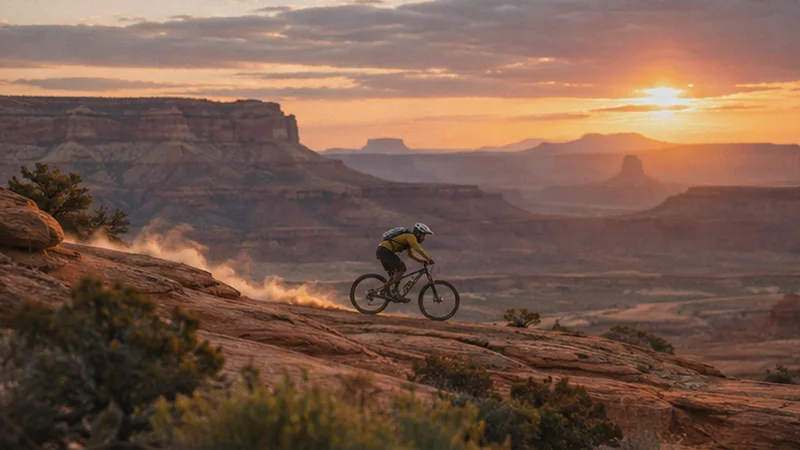
Ease into slow motion at a specific moment, then bring the shot back up to speed.
Try this edit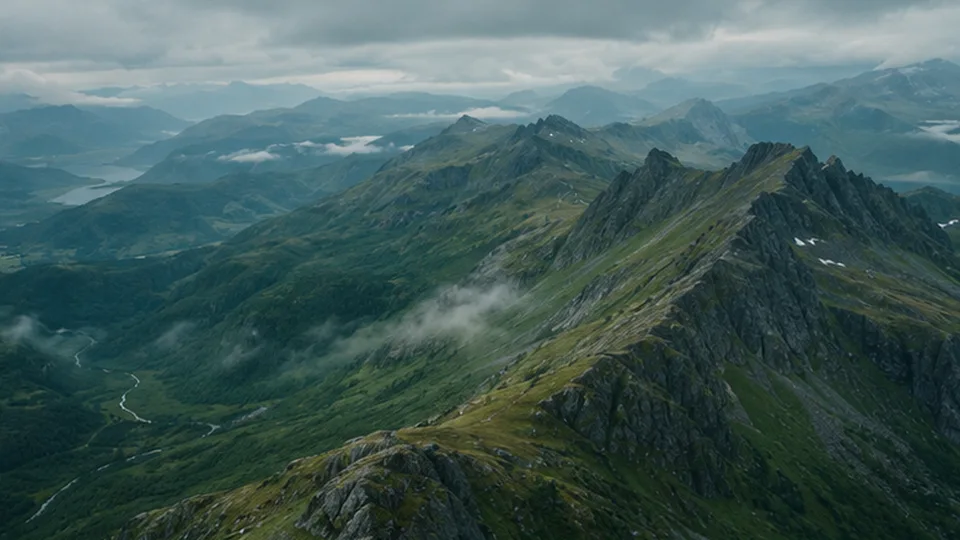

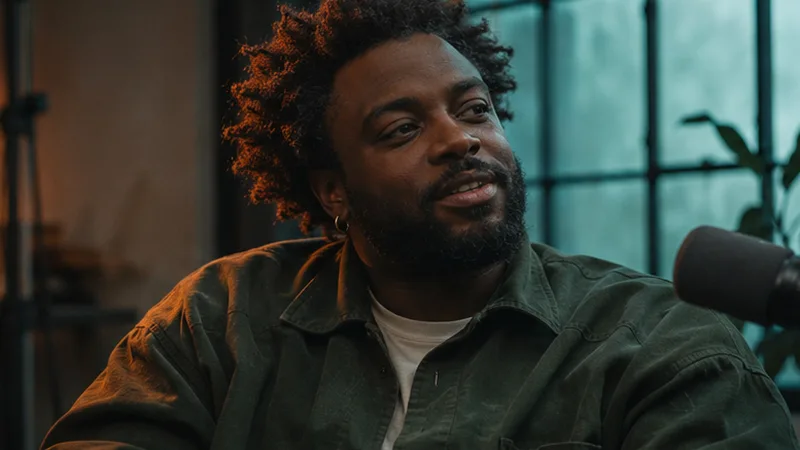
Highlight words as they appear using typed captions or an SRT or VTT file.
Try this editYou can also ask for trims, color grades, push-ins, crossfades, lower thirds, film grain, and vertical reframing.
Tell ClipReel to change the setting, light, or style of a shot. Compare the new take with the original and refine it with another message.
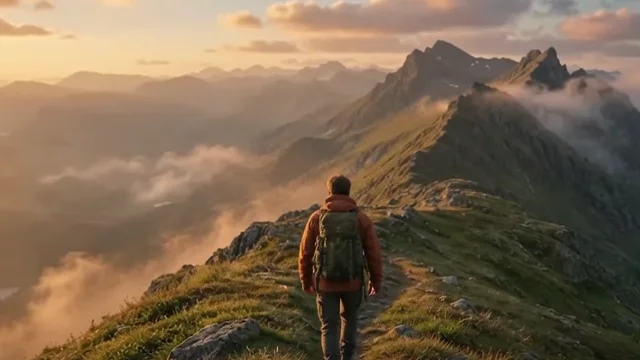
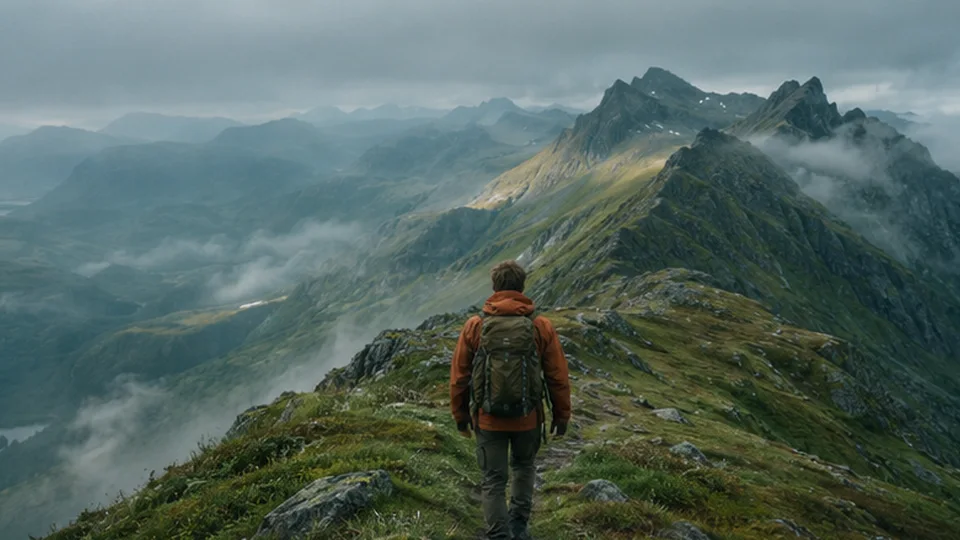
“Give the shot a warm sunset sky. Keep the hiker and camera movement.”
Try shot remixYes. Import your footage into ClipReel, select a shot, and tell Chat what to change. Try “Trim the first two seconds and add a closing title.” Preview the proposed edit and apply the changes you want. See what to ask in chat
You can open the sample project, import a clip, and try editing in chat without registering. The free tools also work without an account. Create an account when you want to save your projects and footage online. Explore the free video tools
Choose the clip with speech and ask “Remove long pauses from this clip.” ClipReel finds quiet ranges and proposes cuts. Listen around each join in the preview so breaths and deliberate pauses sound natural. Read the interview editing playbook
Import a timed SRT or VTT file for speech, or enter a line of text and its time range in Chat. ClipReel can highlight words as they appear. Select the caption layer to change the highlight color or move it higher. Read the captions playbook
Ask Chat to reframe the sequence to 9:16. Scrub through each shot and adjust its crop or position in Inspector so the important action stays in frame. Preview your captions at phone size before exporting. See the vertical video workflow
Select the shot and write a request like “Put the title ‘RIDGELINE’ behind the hiker from 0:01 to 0:05.” Preview frames where the person crosses the text, then adjust the title’s placement and timing. See the title effect
Ask Chat for a tracked label, apply the edit, then pick a distinct point on the object in the monitor. Scrub through the clip to check the label’s path. A textured point usually works better than a blank surface. See examples for tracked labels
Choose Remix shot in Chat, select a short excerpt, and describe the change. Try “Give the sky a warm sunset look. Keep the subject and camera movement.” Compare the new take with the original before replacing the excerpt. Read the shot remix playbook
Ask for the shot and say where it goes, such as “Add a drone shot of the mountain ridge at the beginning.” ClipReel opens a preview where you can review the generated take and add it to the timeline. See more shot prompts
Yes. Name the clip or give timestamps for each change. For example, “Trim the first second, reframe to 9:16, and add a title at 0:03.” Choose which proposed changes to preview and apply. You can revise an applied effect in a follow-up. Browse editing prompt examples
Choose Export in the editor and select 1080p. Select MP4 when it is available in your browser, or use WebM. ClipReel exports the cut in the aspect ratio you chose without adding a ClipReel watermark. Read the export guide
Yes. Sign in from Projects and save your current cut to your account. ClipReel saves the timeline, source media, and chat history. Sign in with the same account on another device and open the saved project. Read about cloud projects
Saving a cloud project stores its media under your account. Editing chat uses your message and relevant timeline details, with frame samples when you attach them. When you remix a shot, ClipReel processes the short excerpt you select. Read about chat and privacy
Upload a clip and tell ClipReel what to change. Trim pauses, add captions, or make a vertical cut.