 ClipReel
Name the shot or select it on the timeline. Say what should change, which time range it applies to, and any details that matter to the edit. A timestamp in a message refers to the current timeline unless you specify a clip-relative time.
Trim, split, reorder, and change pace
Give an exact in or out point for a trim. For a cut that closes a gap, specify the range to remove. For a split you plan to adjust by hand, give the time and keep both halves. Recheck the playhead after applying a cut because the shots that follow can move earlier.
A speed ramp changes playback around a beat. Select the shot and name the moment where you want the slowest point. Watch the cut immediately before and after the ramp to see if the change feels natural.
- “Remove 0:03.2 to 0:04.8 and close the gap.”
- “Split the first shot at 0:04. Keep both parts on the timeline.”
- “Move the alpine aerial to 0:08 and add a short fade into it.”
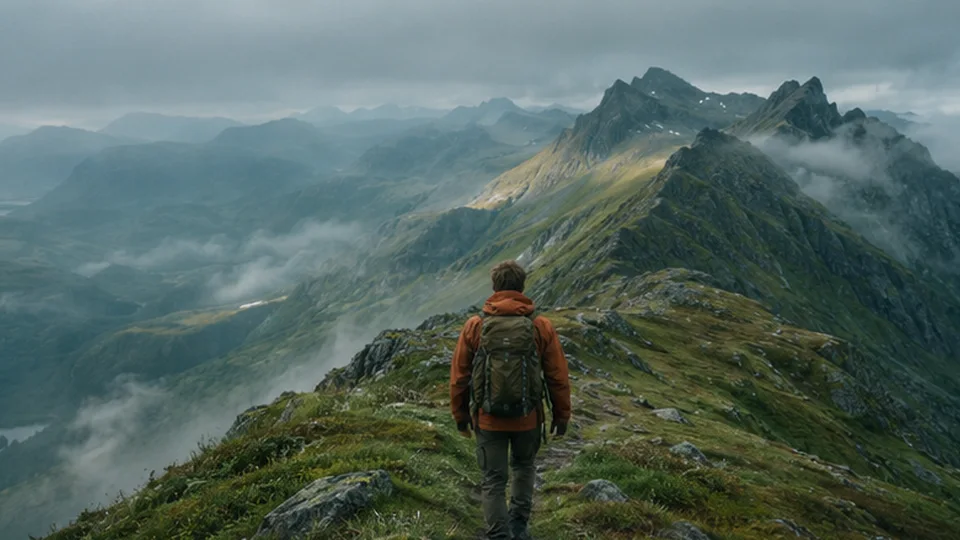
- “Ramp Ridge walk down to 0.4× at 0:04, then return to normal speed.”
“Trim the first 2 seconds, then reframe to 9:16.”
Try in editing chatAdd a title, a moving label, or a mask
Put exact on-screen wording in quotes. A title behind a person works best when the subject is visible against the background. For a tracked label, apply the change and pick a textured point on the object in the monitor. Scrub through the shot to check the path if the object turns or leaves frame.
A shape or text mask can reveal only part of a shot. Name the shape, where it should appear, and how large it should be. For a split screen, name the source clips in the order they should appear and ask for side by side or stacked.
- “Put the opening title behind the hiker, in white, from 0:01 to 0:05.”
- “Track a label that says ‘RIDGE WALK’ on the hiker in the first shot.”
- “Add a circular spotlight on the first shot from 0:02 to 0:05.”
- “Put Ridge walk and Alpine aerial side by side for the opening.”
“Put the opening title behind the hiker.”
Try in editing chatStyle the picture and caption layer
Say warm, cool, vivid, or black and white to start a grade. Give an amount, name the shot, and preview on both bright and dark frames. For animated captions, import your timed SRT or VTT, or type the words and give a range. Then select the caption layer and ask for a style, position, or accent color.
To change a shot’s scene or lighting more substantially, open Remix shot in Chat and choose the excerpt. Describe the specific visual change and point out the subject, framing, and movement you want the new take to preserve.
- “Give Alpine aerial a cool grade at 30% and add a subtle push-in.”
- “Add captions ‘Every shot starts with a question’ from 0:02 to 0:06 in white.”
- “Make the selected captions lime and move them slightly higher.”
“Give the first shot a cooler grade and a subtle push-in.”
Try in editing chatPreview a plan and ask one follow-up
Use the plan checkboxes to choose which operations to preview. Scrub the start and end of each affected range, click Apply changes when it looks right, then select the effect to adjust the timing or appearance in Inspector.
For a follow-up, refer to the edit you applied. “Make the opening title 20 percent smaller and move it higher” is more precise than “make it better.” When Chat asks which clip you mean, select it or send its name and the current timeline time.
“Make the opening title 20 percent smaller and move it higher.”
Try in editing chatTry it in editing chat
Open the sample project with an example message ready to send, or import your own footage.
Open editing chat