 ClipReel
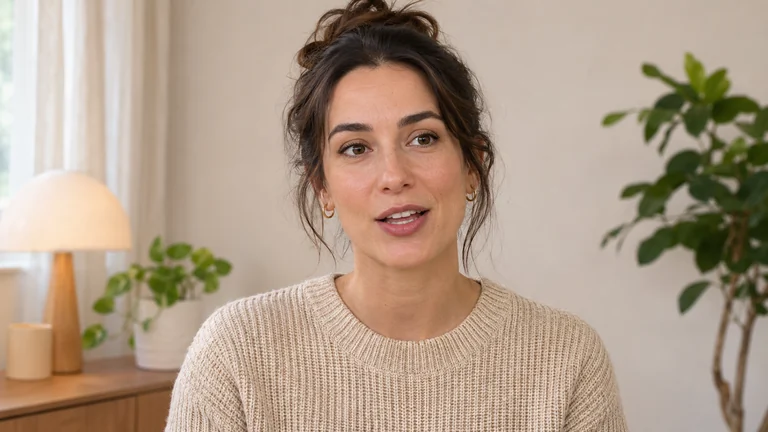
Start with a timed subtitle file or a short line you can type in Chat. Treat captions as part of the edit. Give each phrase time on screen and enough space to read at the intended size.
Set the timing before styling the text
Import an SRT or VTT file after you have settled on the main cut so its timestamps match the words that play. For a one-line example, note where the sentence begins and ends on your timeline. Ask Chat to add that wording within those times.
Play each cue from the beginning of the sentence. If a word appears after the speaker has finished saying it, adjust the cue’s timing. Keep natural phrases together so the line makes sense at a glance.
“Add animated captions “The next shot starts here” from 0:02 to 0:05.”
Try in editing chatRead it on a small screen
Keep each line short enough to read as the footage moves. Start with a strong contrast between the words and their background. Look at the frame before and after a scene change, because a style that works over a dark wall can disappear over a bright window.
Test the render at phone width. If text covers a face, a label, or an essential product detail, move the caption layer up or down. Leave room around the edges for the destination’s playback controls.
“Make the selected captions white and move them slightly higher.”
Try in editing chatUse highlights to help the viewer follow the line
A subtle active-word highlight can guide the eye when the speaker is quick. Select a caption color that stays legible with the original text. ClipReel distributes words within each timed cue, so a shorter cue can help highlight a quick phrase more precisely.
For a two-speaker cut, keep style and placement consistent across the captions. Use a lower third to name each person when they first appear.
“Change the selected captions to lime and keep their current timing.”
Try in editing chatCheck the export on mute
Watch the cut once without audio. Look for lines that flash too quickly, text outside the frame, and captions that cover the main action. Fix the worst spot first, then watch the entire cut again after exporting.
Try it in editing chat
Open the sample project with an example message ready to send, or import your own footage.
Open editing chat