 ClipReel
 RIDGELINE
Why the title looks like it belongs in the scene
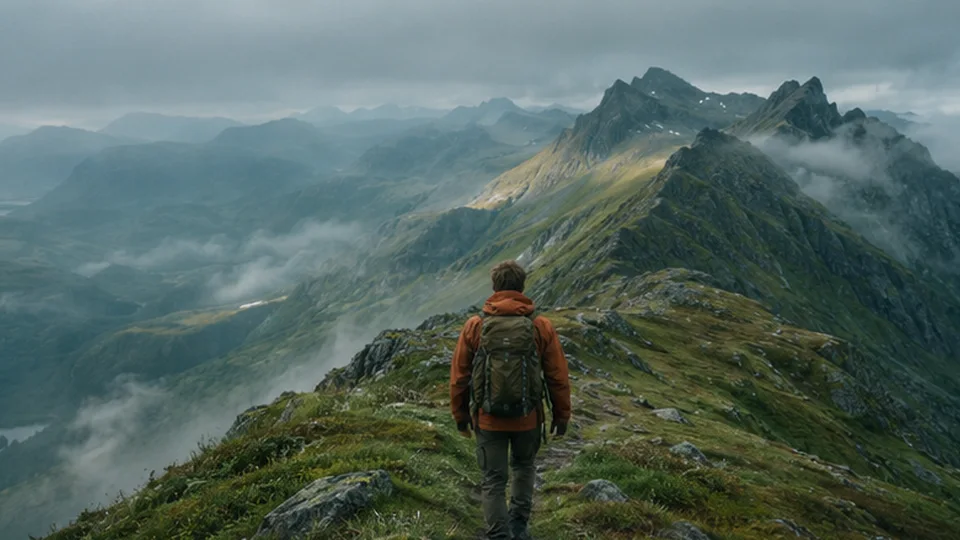
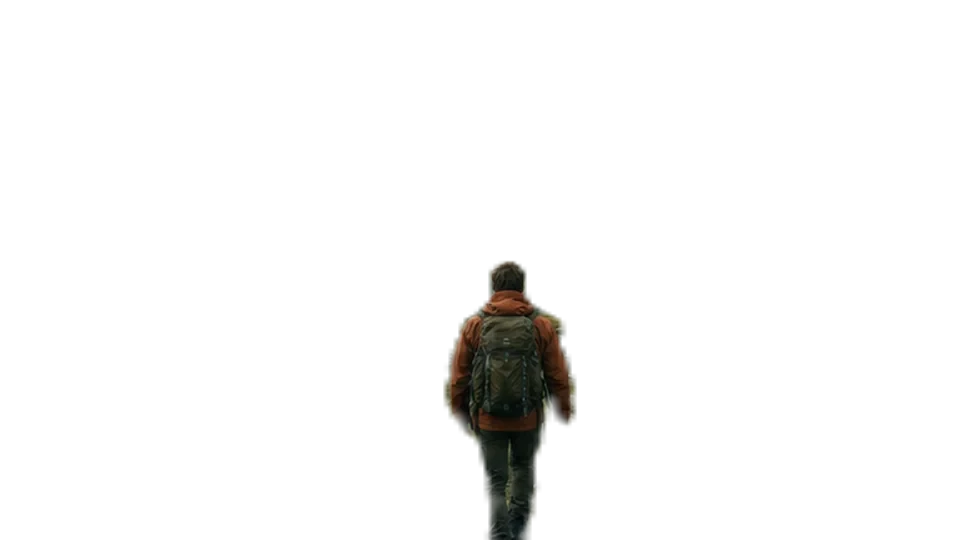
The original shot shows the mountain and hiker together. The title is drawn over the mountain. A separated foreground layer is placed over the lettering, so part of the word disappears when the hiker crosses it. This makes the text read as part of the scene.
Choose a shot where the effect reads clearly
Start with a defined subject and a background that leaves room for a large word. Place the text so the subject overlaps a few letters and viewers can still read the entire title. Use the sample control to try a short word and then a long one.
Describe the timing and placement
Ask for the exact words, the shot, and the range. Try “Put ‘RIDGELINE’ behind the hiker from 0:01 to 0:04. Move it up just enough to keep the word readable.” Preview the cut. In the inspector, adjust the title’s timing and placement if the subject crosses it too early.
Check the foreground on moving frames
Pause where the subject moves across the title. Look at an arm, jacket edge, or moving hair where the mask changes quickly. A smaller overlap, a shorter title, or a slightly wider crop can make a moving shot easier to read.